2.1 KiB
| title |
|---|
| Manually on Windows 11 |
This guide will walk You thrugh installing Hugo on a Windows 11 PC. For the official install guide, You can wisit https://gohugo.io/gettingstarted/installing/.
Download Binaries
The path of least resistance is to just download the .zip file from the official Hugo GitHub Repository here.
The theme that are used, needs the extended version of Hugo, so make sure to download the extended version by ensuring the file name starts with hugo_extended...
{{% alert title="info" color="info" %}}
For the purpose of this install guide, we are assuming You will want to follow the "standard" used by Hugo for installing. We will be creating a Hugo folder in the root of C:\. That folder will have a Bin folder for the binaries, and a Sites folder for each website You are building.
Once You are done, You should have a folder structure that looks like this:
C:\Hugo
├── Bin            # Binaries
└┬─ Sites          # Hugo Site Repositories
 └── alguidelines  # Hugo Source for alguidelines.dev
{{% /alert %}}

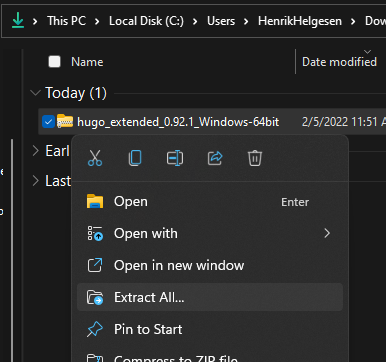
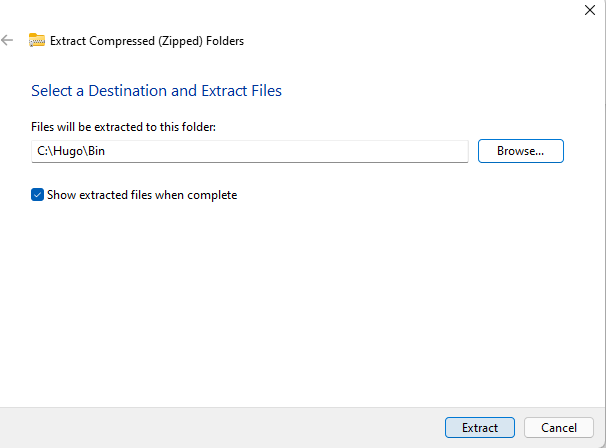
After downloading the .zip file, extract the zip-file to c:\Hugo\Bin
Add Hugo to Path
After copying the binaries to Your PC, You will need to add Hugo binaries to the %PATH% system environment variables.
To do that, search for environment
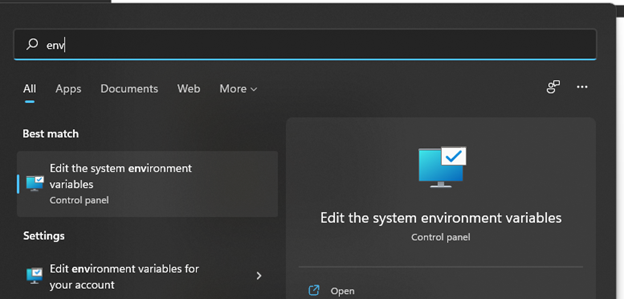
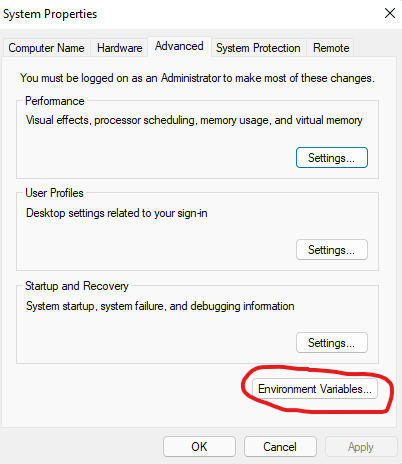
once you see the Edit the system environment variables, open it and select Environment Variables
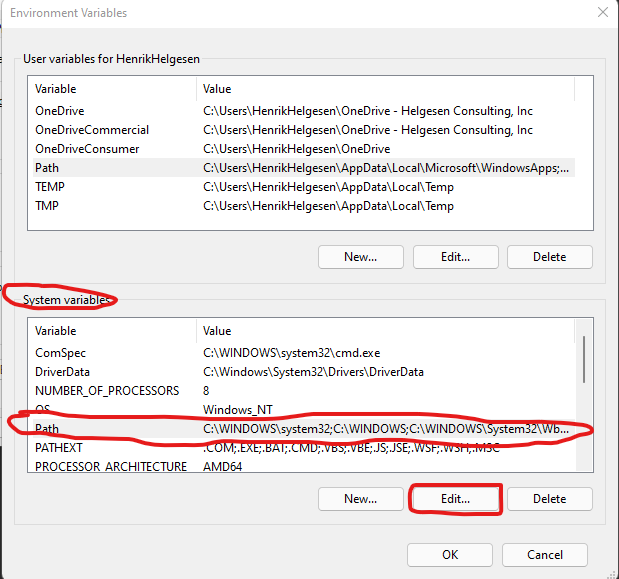
Once the Environment Variables screen is open, highlight the Path lines and press the Edit... button
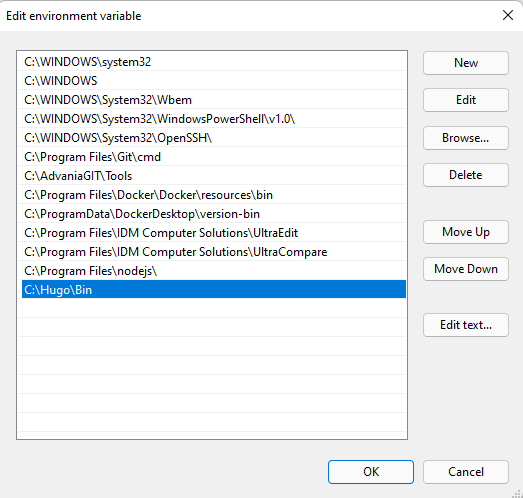
Now press New and add the C:\Hugo\Bin to the path. Press OK and OK to save the new Path
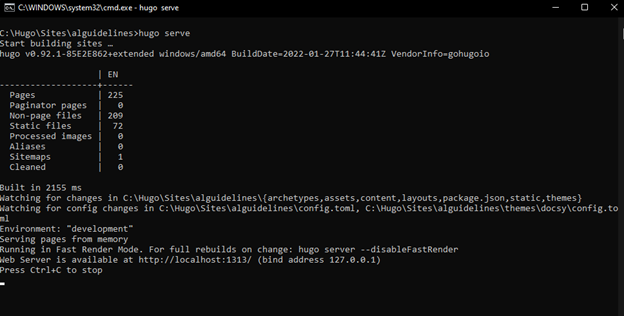
Once complete. You should now be able to preview the Hugo site on http://localhost:1313 by opening a command promt, and open the C:\Hugo\Sites\alguidelines folder and execute Hugo Serve